
Review the terms
As a Gravity affiliate, it is important that you know and follow our Affiliate terms.
To view our Affiliate terms’ complete and up-to-date version, please visit our terms and conditions page here.
After the legal terms it basically tells you that when you refer a customer through your tracking link(s), they have 30 days to complete a purchase for you to get credit. Our crediting policy is on a last click basis. We will pay 20% of the net sale amount for every sale you refer to.
Easy as that!
How to complete your withdrawal settings
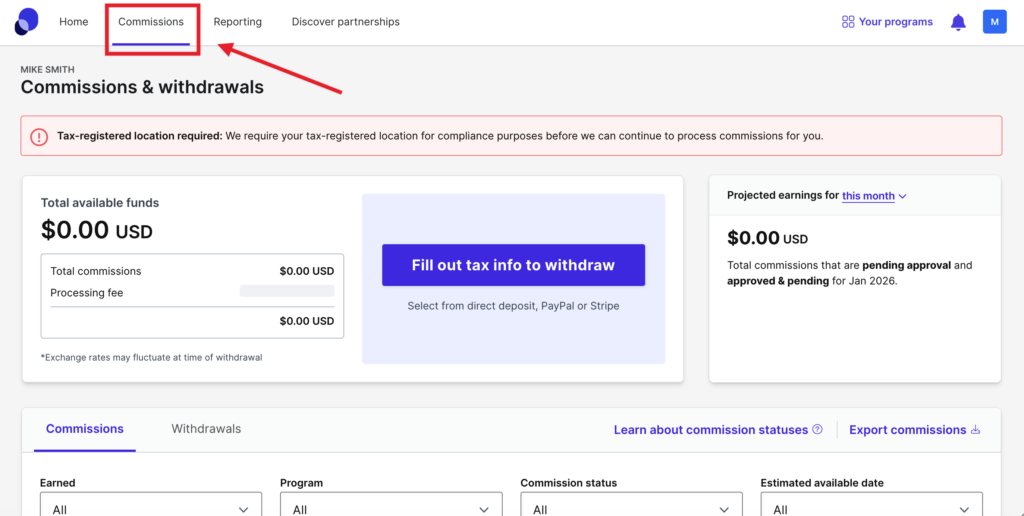
One of the first steps in setting up your account is to update your Withdrawal Settings. We want to make sure you get paid :). To do that, simply click on Commissions in the top navigation bar from your profile page.
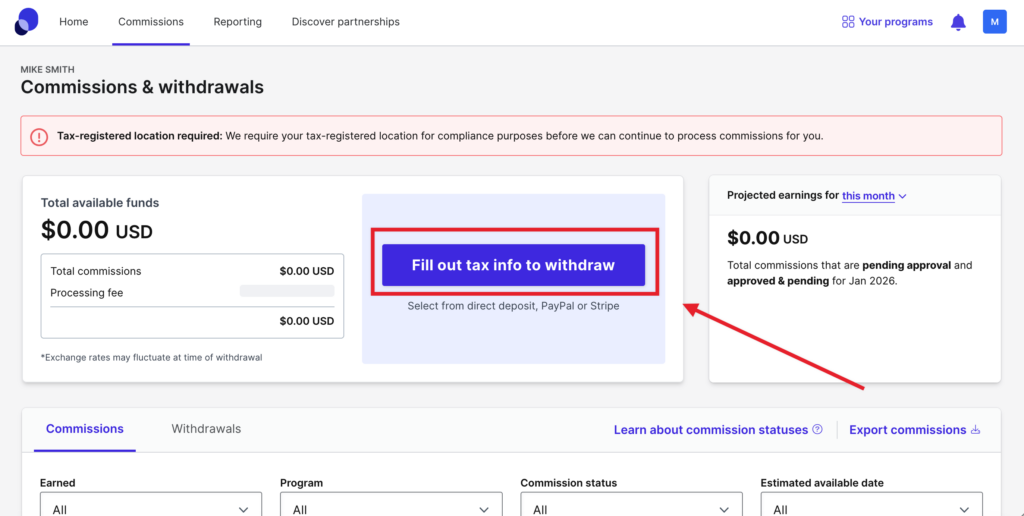
Begin by clicking on Fill out tax info to withdraw. This step is necessary to meet tax compliance laws.
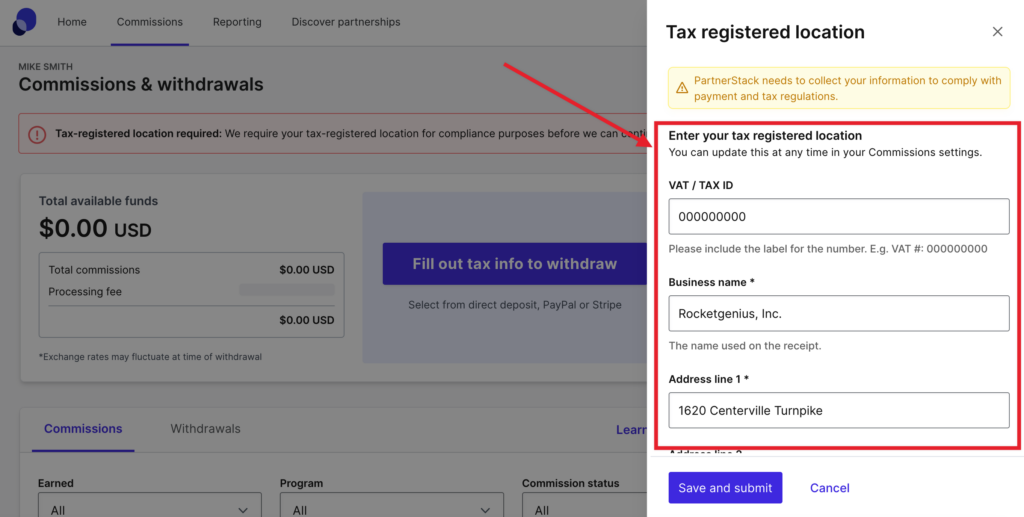
Here you simply fill out basic information regarding your business. Be sure to click on Save and Submit at the bottom of the box.
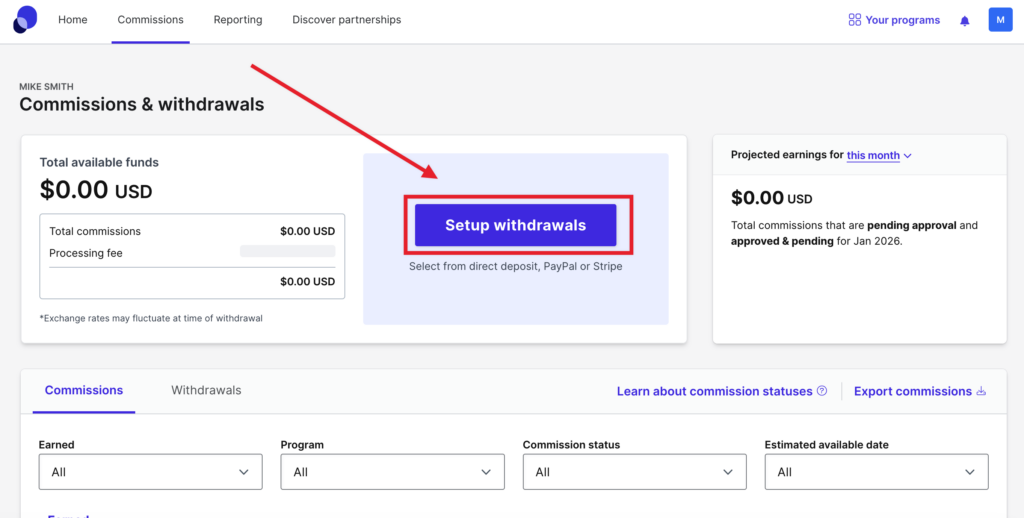
Once this is complete, click on Setup Withdrawals.
Now select your preferred payment method: PayPal. Stripe, or ACH.
Note: PayPal and Stripe charge a processing fee.
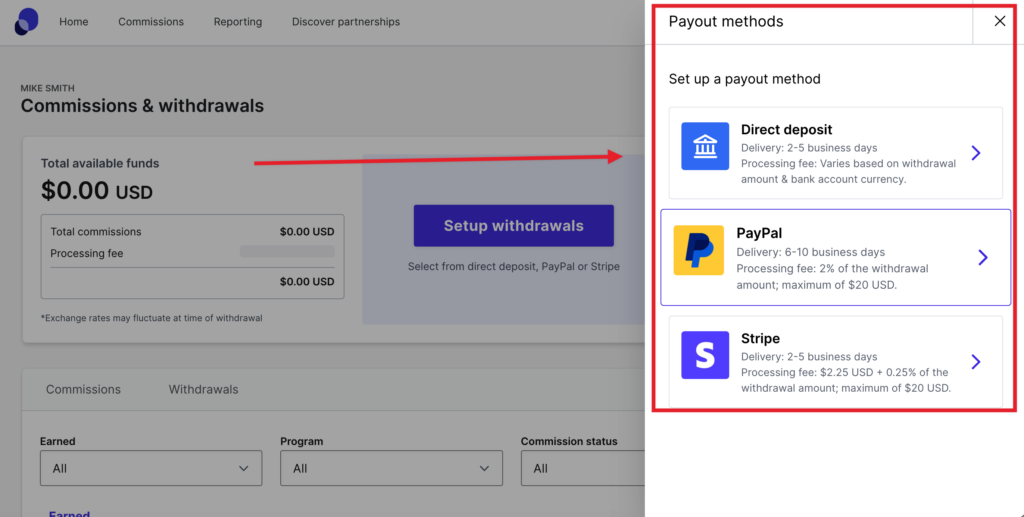
Alternatively, you may find this article helopful as well.
How to access your tracking links
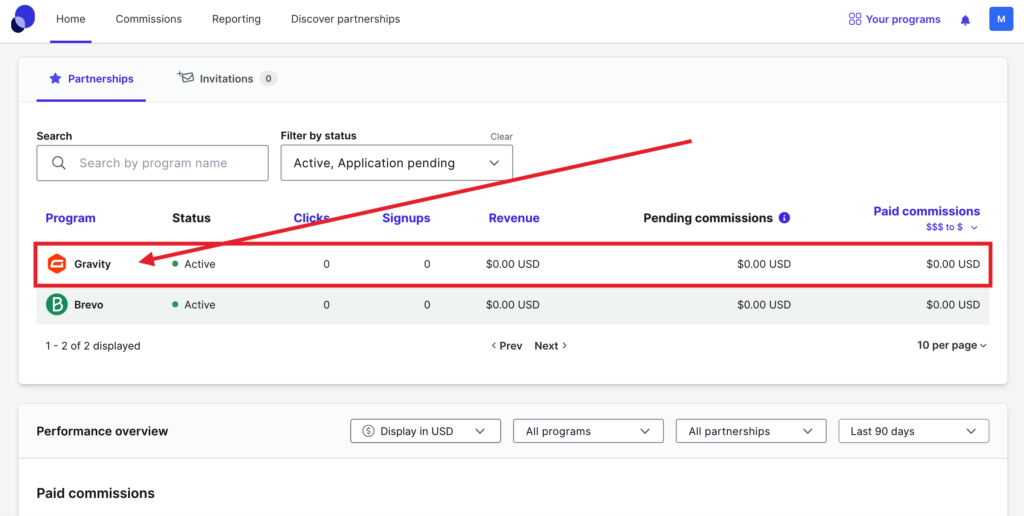
To access your tracking link, simply click on Gravity from your list of programs on your home profile page.
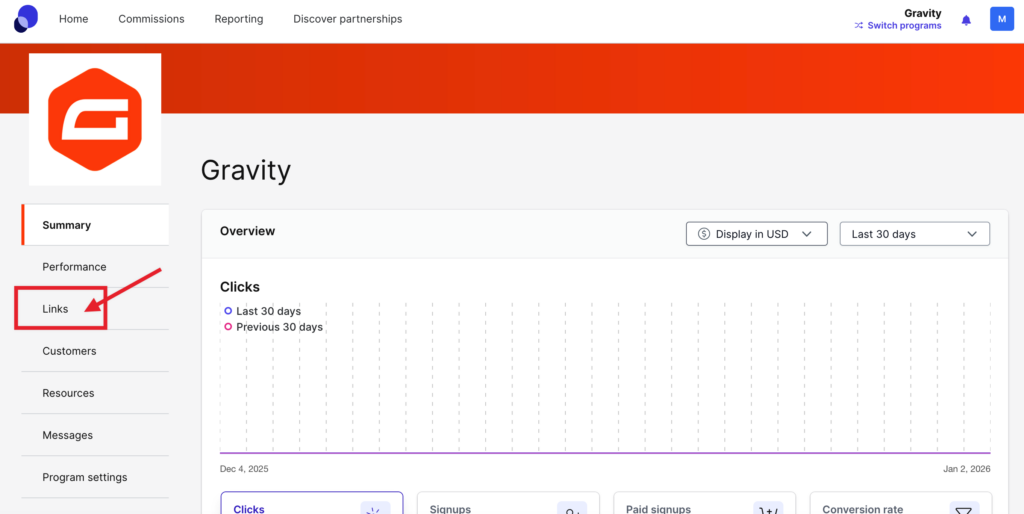
From here, click on the Links tab from the left navigation bar.
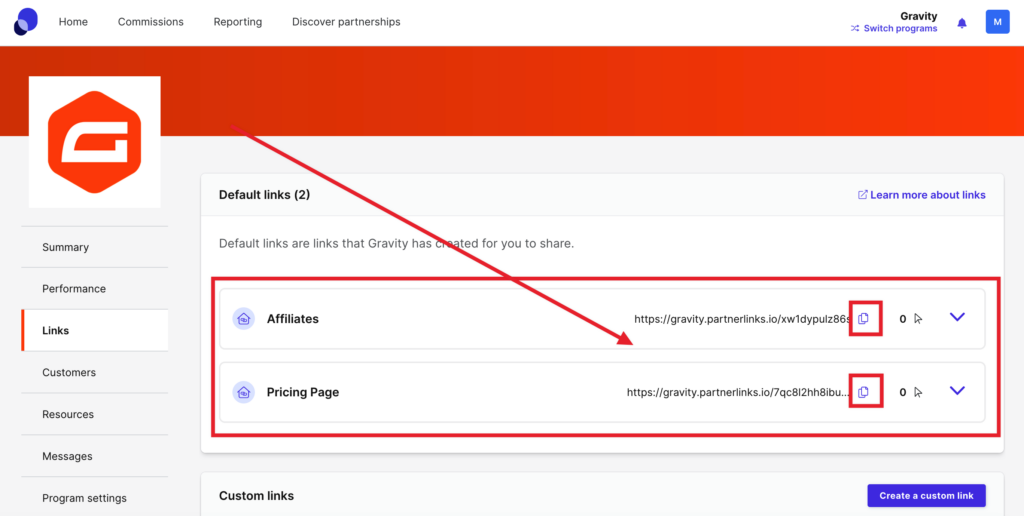
This will show the existing links that you can then copy and paste into your webpage or other content.
From here you can also create your own custom links.
However, there’s one more thing we want to show you first, which will come in handy: accessing Gravity Forms Branded assets.
How to access branded images
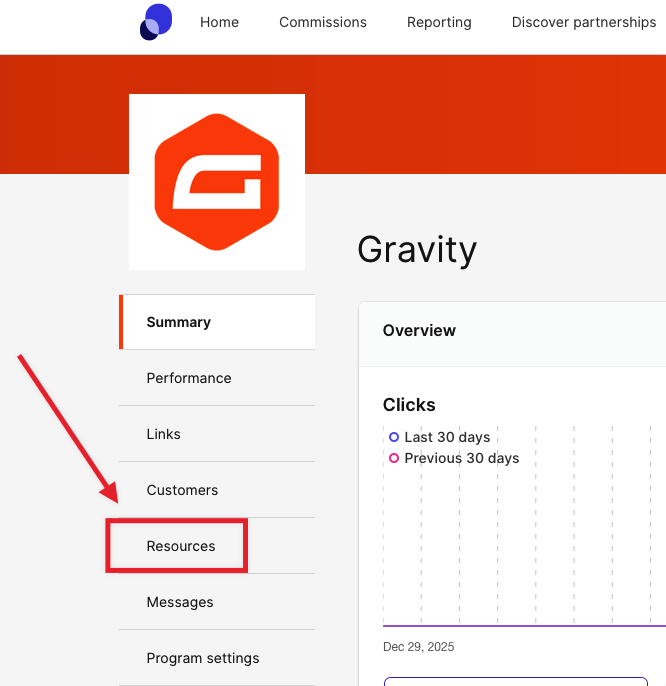
On your Home screen, click on the Resources button from the left-side menu options.
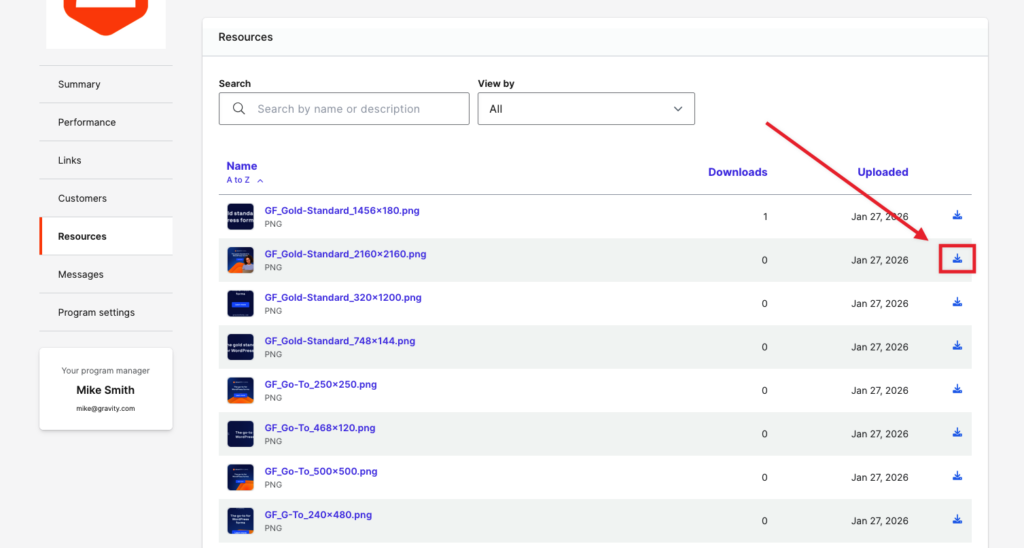
Here you see a list of our available resources for download. You may download them directly from this screen by clicking on the download button on the right side.
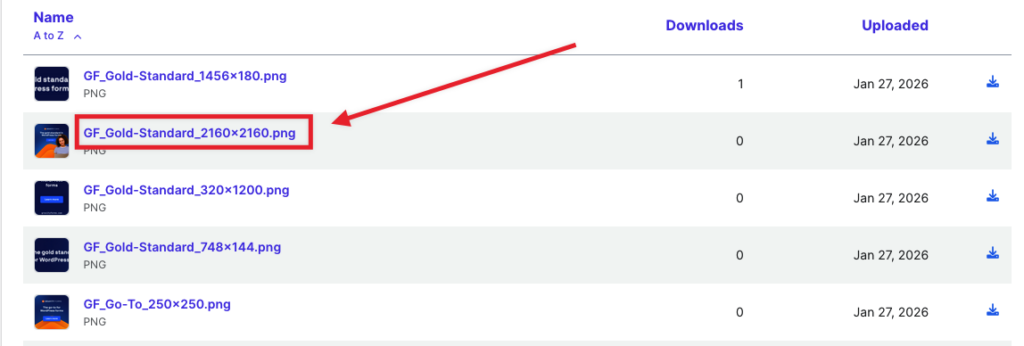
Additionally, you can click on the title of the resource which will show that resource as a pop-up.
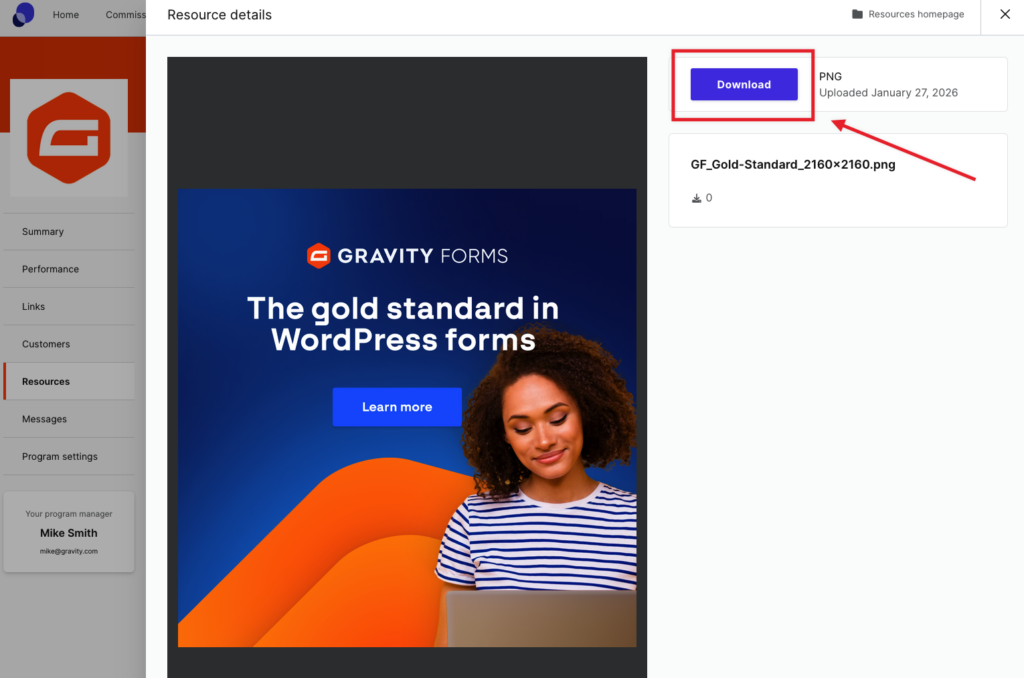
This view also allows you to download the selected resource.
Now that the boring part is over, you can take your new account to the next level! We are glad you are with us!